¶ Ubuntu OS Setup with Argon ONE V3 / Argon ONE V5 / Argon NEO 5 NVMe Cases
To use Ubuntu OS with your PCIe NVMe setup, it is essential that the latest version of bootloader and EEPROM is configured on your Raspberry Pi 5.
*Refer to section B. UPDATING BOOTLOADER OF RASPBERRY PI 5 in case you need to update your Raspberry Pi 5
¶ SETUP ARGON SCRIPT ON UBUNTU
1. Boot into Ubuntu OS and Update the System and Install curl (if not already installed)
Once Ubuntu boots from the NVMe SSD, run:
sudo apt update
sudo apt upgrade
sudo apt install curl
sudo reboot
2. Run the Argon ONE Script
Install the Argon script:
Argon NEO 5
curl https://download.argon40.com/argonneo5.sh | bash
Argon ONE V3
curl https://download.argon40.com/argon1.sh | bash
Argon ONE V5
curl https://download.argon40.com/argon1v5.sh | bash
Reboot after installation.
3. Run the Argon configuration tool via ‘argon-config’ in Terminal
¶ UPDATE BOOTLOADER OF RASPBERRY PI 5
1. Prepare a Raspberry Pi OS (Bookworm/Trixie) SD Card
Start with a fresh Raspberry Pi OS Bookworm image (desktop version recommended) on an SD card. Boot into it and run the following commands in Terminal to update the system:
sudo apt update sudo apt upgrade sudo reboot
2. Update the Bootloader Firmware
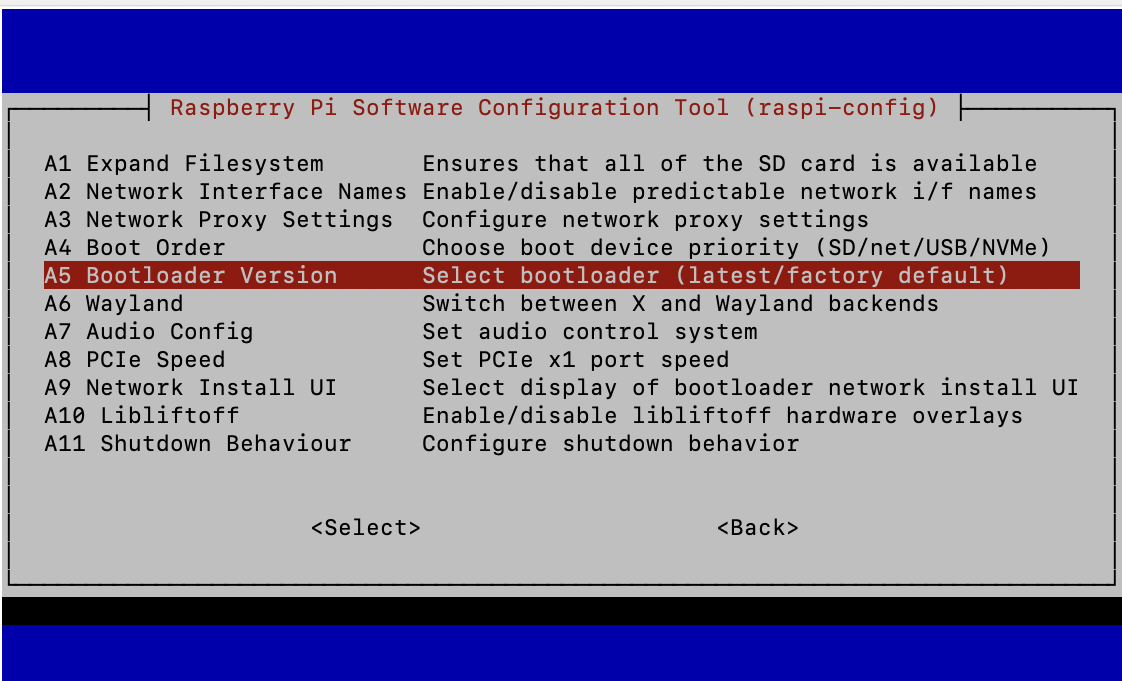
After rebooting, open the Raspberry Pi configuration tool:
sudo raspi-config
Navigate to Advanced Options > Bootloader Version and choose the latest image version
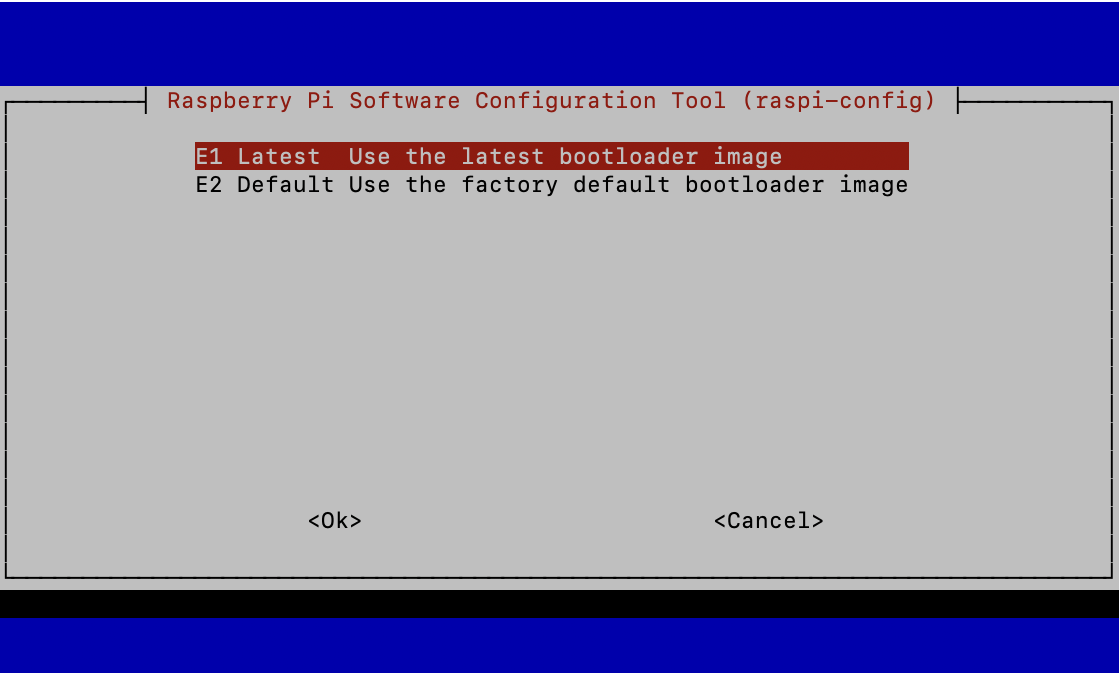
Ensure your Raspberry Pi's system clock and date are accurate for the update process to work correctly.
You may set the date and time manually by running the script:
sudo date -s “YYYY-MM-DD HH:MM:SS”
3. Update EEPROM Configuration
sudo rpi-eeprom-config-update